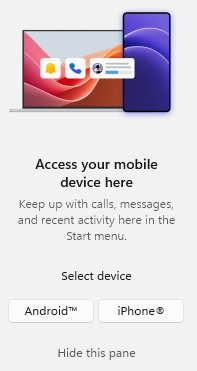
In the most recent update of Windows 11, Microsoft added a new design of the windows 11 start menu that includes a the pane “Access your mobile devices here”, also called “Phone Link In Start Menu”. While this is a neat feature for users at home, it’s not something you really want in a company environment. And as usual, Microsoft hasn’t provided any policy or setting to easily hide this by default.
Fortunately you can hide it by default by changing the registry settings “RightCompanionToggledOpen” to 0 under HKCU:\Software\Microsoft\Windows\CurrentVersion\Start
Now to be clear, this only hides the pane, but doesn’t disable it. To disable the feature you can either uninstall the app or use a different registry setting. In our company we have chosen to hide it by default (for now) and leave it up to the user to use it or not.
To enrol this setting I created a quick remediation script that can also be found on Github.
Detect-HidePhoneLinkInStartMenu.ps1
$Path = "HKCU:\Software\Microsoft\Windows\CurrentVersion\Start"
$Name = "RightCompanionToggledOpen"
$Value = 0

if(-not(Get-ItemProperty -Path $Path -Name $Name -ErrorAction SilentlyContinue)){ exit 1 } #Check if the ValueName exist and if not exit with code 1
if($(Get-ItemPropertyValue -Path $path -Name $Name) -ne $Value) { exit 1 } #Check if the value matches the expected value, if not exit with code 1

#No remediation needed
exit 0
Remediate-HidePhoneLinkInStartMenu.ps1
$Path = "HKCU:\Software\Microsoft\Windows\CurrentVersion\Start"
$Name = "RightCompanionToggledOpen"
$Value = 0
New-ItemProperty -Path $Path -Name $Name -PropertyType DWord -Value $Value -Force
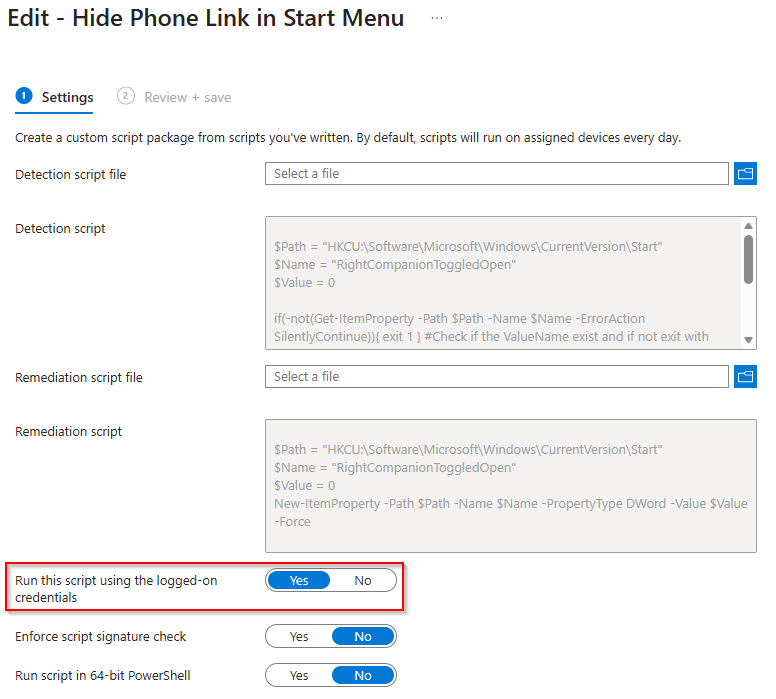
Just make sure you run it using the logged-on credentials:
And that’s it.